
Prerequisites #
- SFTP-compatible rental server
- Windows 11 PC
Download Winftp #
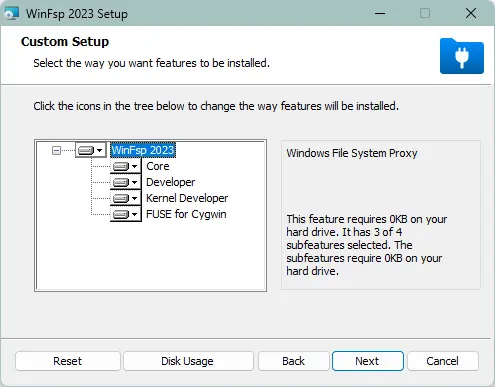
Download Rclone #
After installation, check the status.
rclone --versionSetting up the Rclone Config File #
Enter Setup Mode #
Enter:
rclone configSelect New remote by typing n.
Select SSH/SFTP.
Then, configure basic information such as the server host, password/key, etc.
Find the Configuration File Location #
rclone config pathsFor reference, here is my configuration file.
[Drive]
type = sftp
host = example.sakura.ne.jp
user = nekosama
pass = password
use_insecure_cipher = true
shell_type = unix
md5sum_command = md5 -r
sha1sum_command = sha1 -r
Mount the Drive #
Create a .bat file and enter the following content:
rclone mount Drive:/home/user/your_file Z: ^
--cache-dir %LocalAppData%\rcloneLocalAppData ^
--vfs-cache-mode writes ^
--volname "Drive Name" ^
--buffer-size 512M
About Drive:/home/user/your_file #
Drive: The name of the remote created earlier:/home/user/your_file: The file location you want to specify (optional)
cache-dir #
Specifies the directory rclone uses for caching. (Optional)
vfs-cache-mode #
Cache mode (writes is recommended)
Check here for detailed information.
volname #
The name of the drive (Optional)
buffer-size #
A buffer to speed up file transfers. (Optional)
Mount #
Finally, run the .bat file and the drive will appear.