
Caution
This method applies only to Windows 11 Pro.
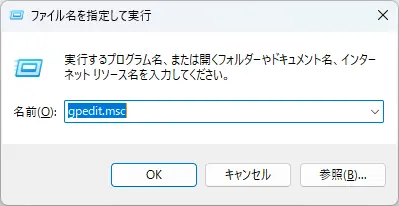
Press Windows and R, type gpedit.msc, and press Enter.
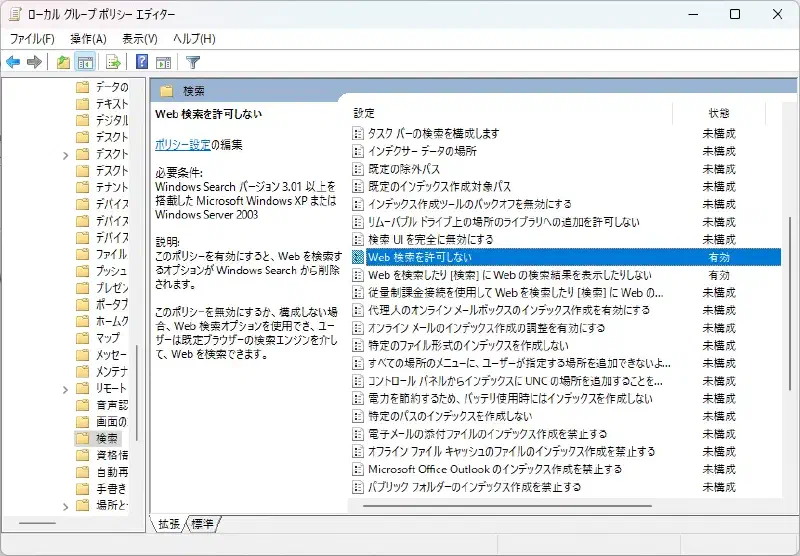
Navigate to Computer Configuration > Administrative Templates > Windows Components > Search.
Double-click Do not allow web search and Do not search the web or display web search results in [Search] to enable them.
Restart your computer.
Also, press Windows and R, type regedit.exe, and press Enter.
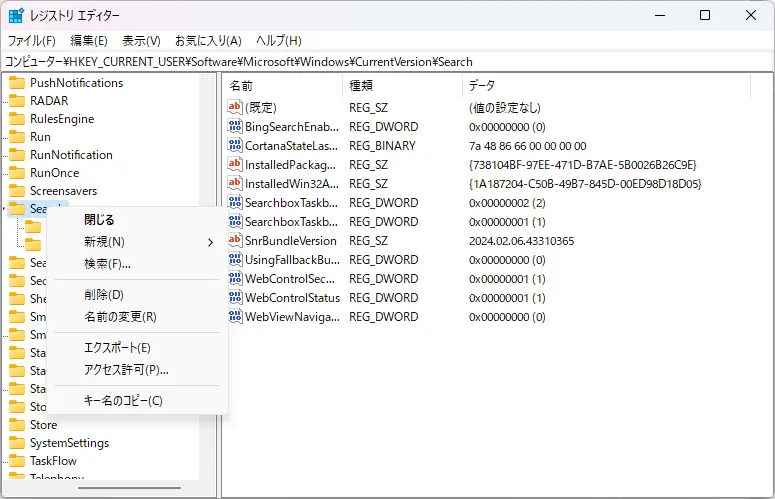
Navigate to Computer\HKEY_CURRENT_USER\Software\Microsoft\Windows\CurrentVersion\Search.
Right-click Search, create a new DWORD (32-bit) value, and name it BingSearchEnabled.
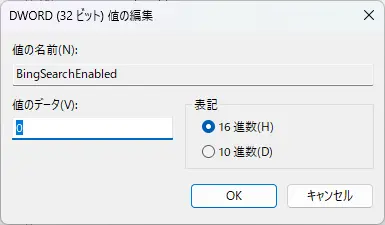
Double-click the DWORD value and set its value to 0.
After that, the web search results will disappear.